
SmartFi guide: how to set up WiNET step by step
This guide walks you through SmartFi setup using screenshots hosted directly on our website.

1. Scan the QR code
Open SmartFi Config, bring your smartphone close to the WiNET module and scan the QR code on the label. Before starting, make sure the device is powered and the green LED is on.
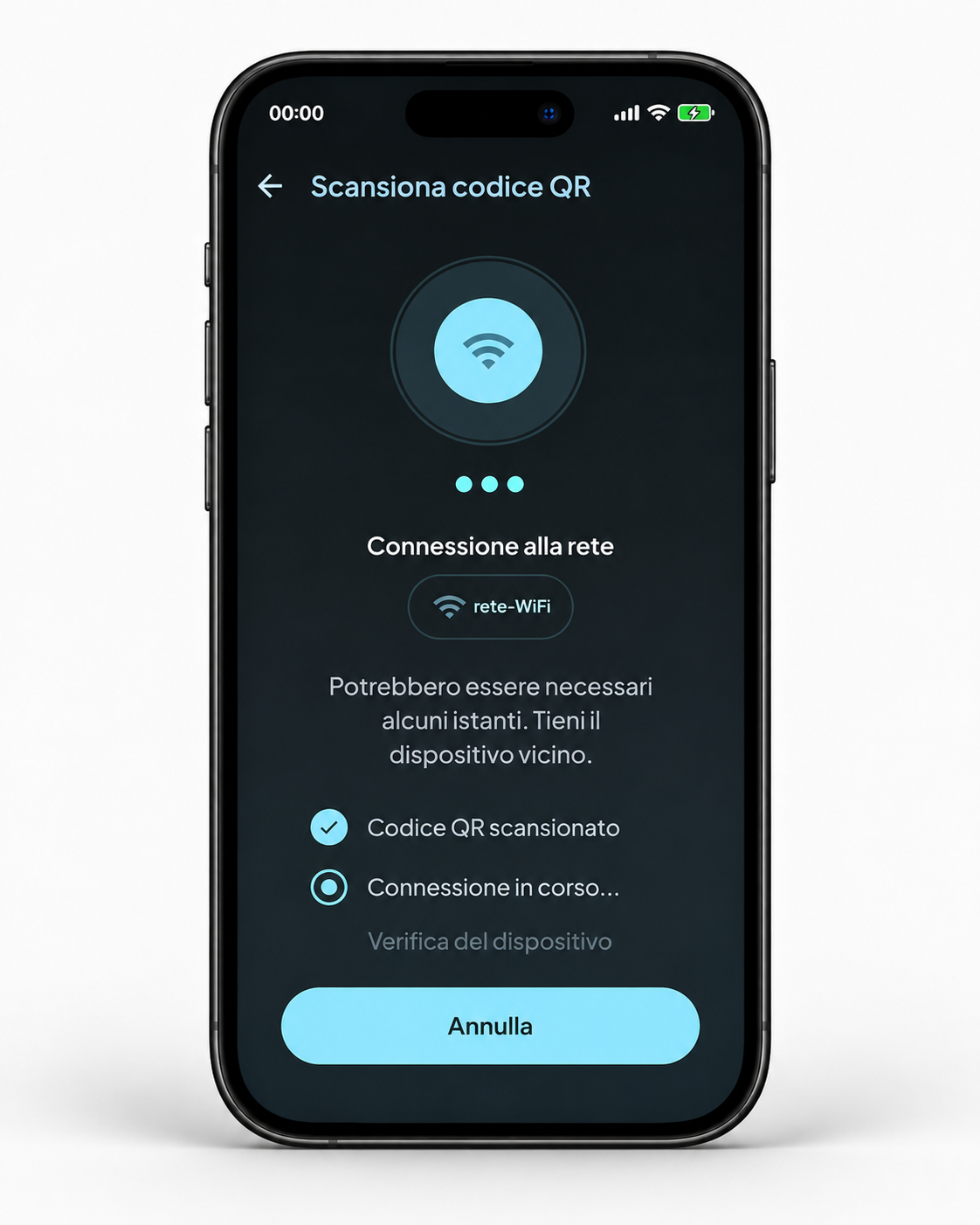
2. Wait for the initial connection
After scanning the QR code, the app automatically starts connecting to the device. Keep the phone nearby and wait a few seconds.

3. Enter the WiFi settings
Select your 2.4 GHz home WiFi network and enter the correct password. If the phone is connected to an unsupported network, the app will warn you.
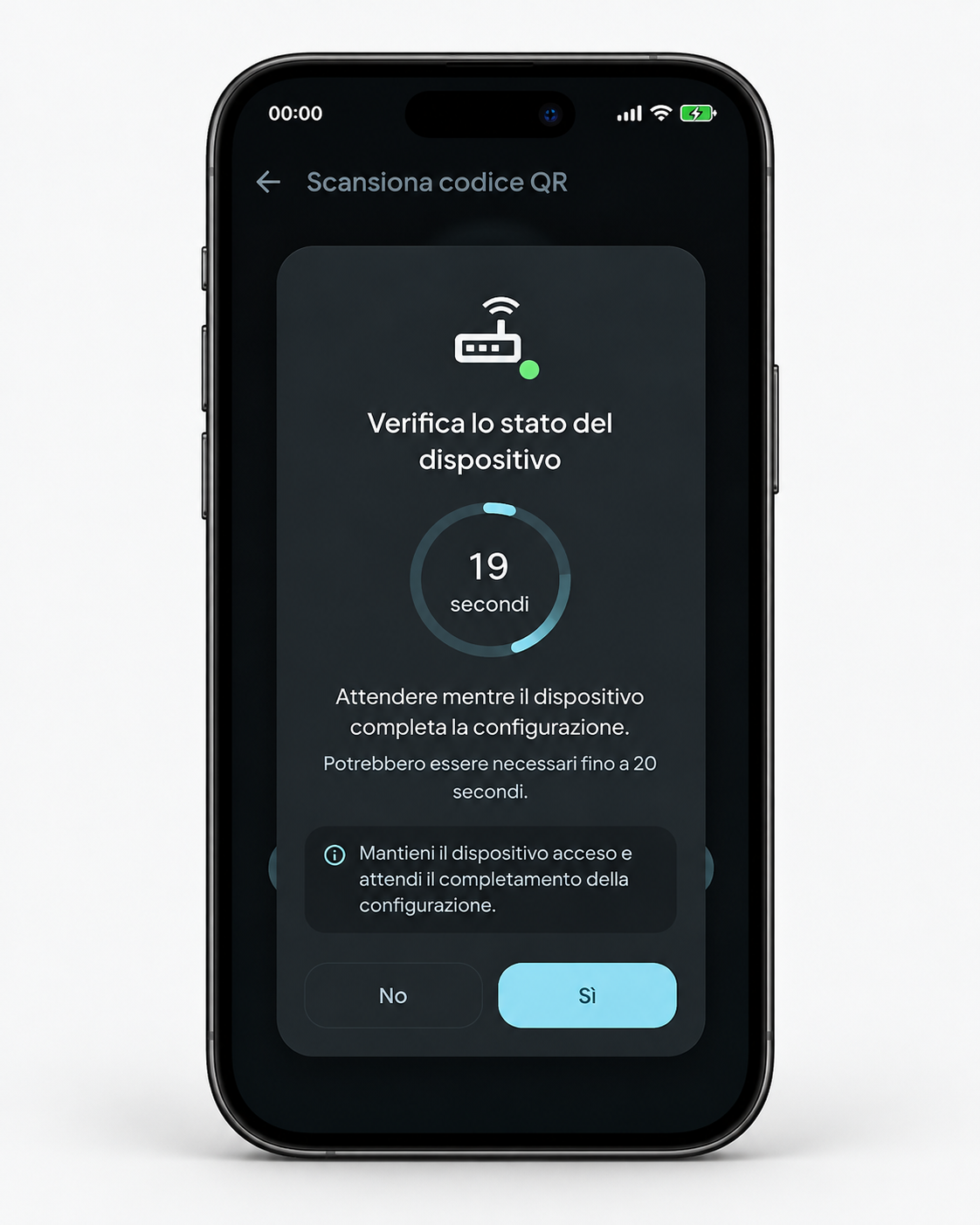

4. Check the device status
During setup you will see a verification screen with a countdown. Keep the device powered on and wait for the procedure to finish.

5. Confirm when the device is ready
When “Ready” appears, check the module LED. If the green LED has turned off, confirm with “Yes”. If it is still on, check network and password and try again.

6. Setup completed
When the procedure ends, the device is connected to the network and ready. You can now continue with WiNET+ for normal use.
Useful tips
- Always use a 2.4 GHz WiFi network.
- Keep your smartphone close to the WiNET device during setup.
- If you change your router or WiFi password, you must repeat the SmartFi configuration.
- After setup, use WiNET+ to register and normally use the device.
App download
If you have not done it yet, download the app from the stores.
